
How to convert a GPX file to KML, Shapefile or CSV
Your GPS app only exports GPX, and the next tool in line wants something else. This guide shows how to convert a GPX file to KML, Shapefile or CSV. The conversion is free and runs in your browser, so the track never leaves your device.
Key facts
- GPX stores waypoints, routes and tracks in WGS84 (EPSG:4326) with a fixed set of fields.
- In testing GPX kept 1 of 6 attribute columns, so exporting to shapefile or CSV preserves far more of the data.
- A shapefile export is 5 files in one zip; a CSV export keeps coordinates as X/Y columns.
What is in the file
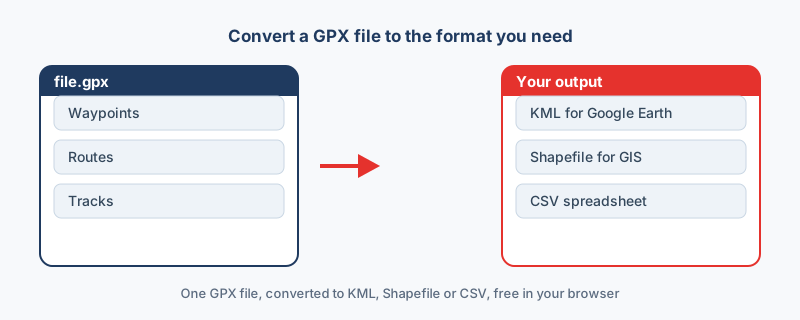
A GPX file can hold three kinds of thing at once. Waypoints are the single points you saved on purpose, such as a trailhead or a summit. Routes are planned lines made of a few chosen points, and tracks are recorded lines made of many timestamped points. One recording can carry all three, which matters later, because a good conversion keeps all three.
The 4 steps
- Open the GPX converter and drop in your .gpx file.
- Check the preview, where your track should appear in the right place.
- Pick an output, using the table below to match it to your next tool.
- Click Convert, and the finished file downloads straight to your device.
The preview deserves the few seconds it takes, because a track that draws in the wrong country points to a problem in the source file rather than in the conversion.
Which output to pick
The right output depends on the next tool in the chain, not on the GPX itself.
Keep every point, not just the track
Some converters drop the waypoints and keep only the track, which quietly loses the trailheads, campsites and photo spots you marked. Open the output and confirm that the waypoints, the route and the track are all present before you delete the original file. A quick count of waypoints in the output against waypoints on the device catches the loss early.
Watch the coordinate system
GPX is always WGS84 longitude and latitude, and KML and GeoJSON use the same system, so those conversions need no reprojection at all. A shapefile can use any coordinate system, which means you should set one before you export if the next tool expects something particular. The format itself follows the open GPX schema.
Why it matters that this runs locally
GPS tracks are personal, since a recording can show your home, your daily run or a client site. Many online tools upload the file to a server before converting it, and once a file is sent, you cannot unsend it. This converter processes the GPX in your browser, so the track stays on your machine from drop to download.
“Take a GPX off a device and the first thing to do is convert it, because GPX keeps the track but drops most of the attributes. Shapefile or CSV keeps the data.”
Frequently asked questions
Does GPX hold much data about each point?
No. The format has a fixed set of fields, so extra attributes do not fit. Use Shapefile, GeoJSON or CSV, not GPX, to store data with many attributes.
Why did I get separate point and line files?
A shapefile holds one geometry type per layer, so waypoints and tracks are delivered as separate layers inside the .zip.
Where is the GPX format documented?
In the open GPX schema at topografix.com/gpx.asp. The format is plain XML, so the file can be read in any text editor.
What coordinate system does a GPX file use?
GPX always stores WGS84 longitude and latitude. KML and GeoJSON use the same system, so no reprojection is needed, while a shapefile can be assigned another system if required.
Is it safe to convert a GPX file online?
It depends on the tool. Many upload the file to a server, which is a risk for personal tracks. A converter that runs in the browser processes the GPX locally, so the file never leaves your device.